

Tutorial 2. Scheduling your experiment#
In Tutorial 1. Running an Experiment you ran run_quantify_demo inside the shared service’s own kernel - quick and direct, but it only works while that connection is open, and it runs whatever code you type with no record of what was requested (see Through a proxy kernel).
This tutorial submits it as a task instead: a structured request sent from your own personal kernel, dispatched through the Task Manager - the same one Juice uses everywhere (see Tasks for how it’s routed under the hood). Because a task doesn’t depend on your kernel staying connected, it can also be handed a time to run at instead of running immediately, which is what the rest of this tutorial does.
Defining a task to describe the work you want to run.
Executing a task to run it on a service and read the result.
Scheduling a task to run it later instead of right now — the experiment itself, not just a toy example.
Next steps for accessing more advanced features of tasks.
We will assume you have opened and logged in to the OrangeQS Juice JupyterHub from your browser. This guide targets the shared service, which is available by default in every OrangeQS Juice installation.
This tutorial exercises the Task Manager and the shared service — see them highlighted in the architecture overview.
Defining a task#
A task is a Python class that carries its payload — the arguments the service needs to do the work.
For this guide we use IPythonTask, a ready-made task type that runs a block of code in the target service’s IPython kernel and returns the result.
By subclassing it, you only have to fill in the code property.
Open up a new notebook from the JupyterHub launcher and define the task:
from pydantic import computed_field

from orangeqs.juice.schemas.tasks import IPythonTask

class HelloServiceTask(IPythonTask):
    service_name: str

    @computed_field
    @property
    def code(self) -> str:
        return f"print('Hello from {self.service_name}!')"
Note that the order of the decorators matters here: @computed_field must sit above @property.
Executing a task#
Tasks are executed with a Client.
Create a client and build a task instance with the payload you want to send:
from orangeqs.juice import Client

client = Client()
payload = HelloServiceTask(service_name="shared")
Run it and wait for the result:
result = await client.execute("shared", payload)
execute() targets shared, the service the task runs on, and blocks until the task finishes. (request() is a non-blocking alternative for when you don’t want to wait — see its docstring for details.)
Scheduling a task#
By default execute() blocks and returns the task result.
Passing a scheduling argument flips this: the call returns immediately with a
TaskHandle, since a scheduled task cannot block for a result that does not exist yet.
The scheduling argument is run_at: the earliest time the task should fire.
We’ll schedule run_quantify_demo from Tutorial 1. Running an Experiment instead of HelloServiceTask, since scheduling something real is more useful than scheduling a print statement. Because that function now lives in the lab repository (Adding the experiment to the lab repo), its task’s code only needs to import and call it — no need to inline the whole experiment as a string:
from pydantic import computed_field
from orangeqs.juice.schemas.tasks import IPythonTask

class RunQuantifyDemo(IPythonTask):
    @computed_field
    @property
    def code(self) -> str:
        return "from lab.quantify_demo import run_quantify_demo\n\nrun_quantify_demo()"
Run this from your own personal notebook kernel (the regular Python 3 kernel from the Launcher) — not a shared Proxy Kernel (see Where to run this):
from datetime import datetime, timedelta

# Run once, 10 seconds from now.
handle = await client.execute(
    "shared", RunQuantifyDemo(), run_at=datetime.now() + timedelta(seconds=10)
)

print(handle.status)  # "queued"

# Await the handle to update the status and result when the scheduled Task is finished.
schedule_status = await handle
print(schedule_status.status)  # "done"
print(schedule_status.result)  # the result of the Task
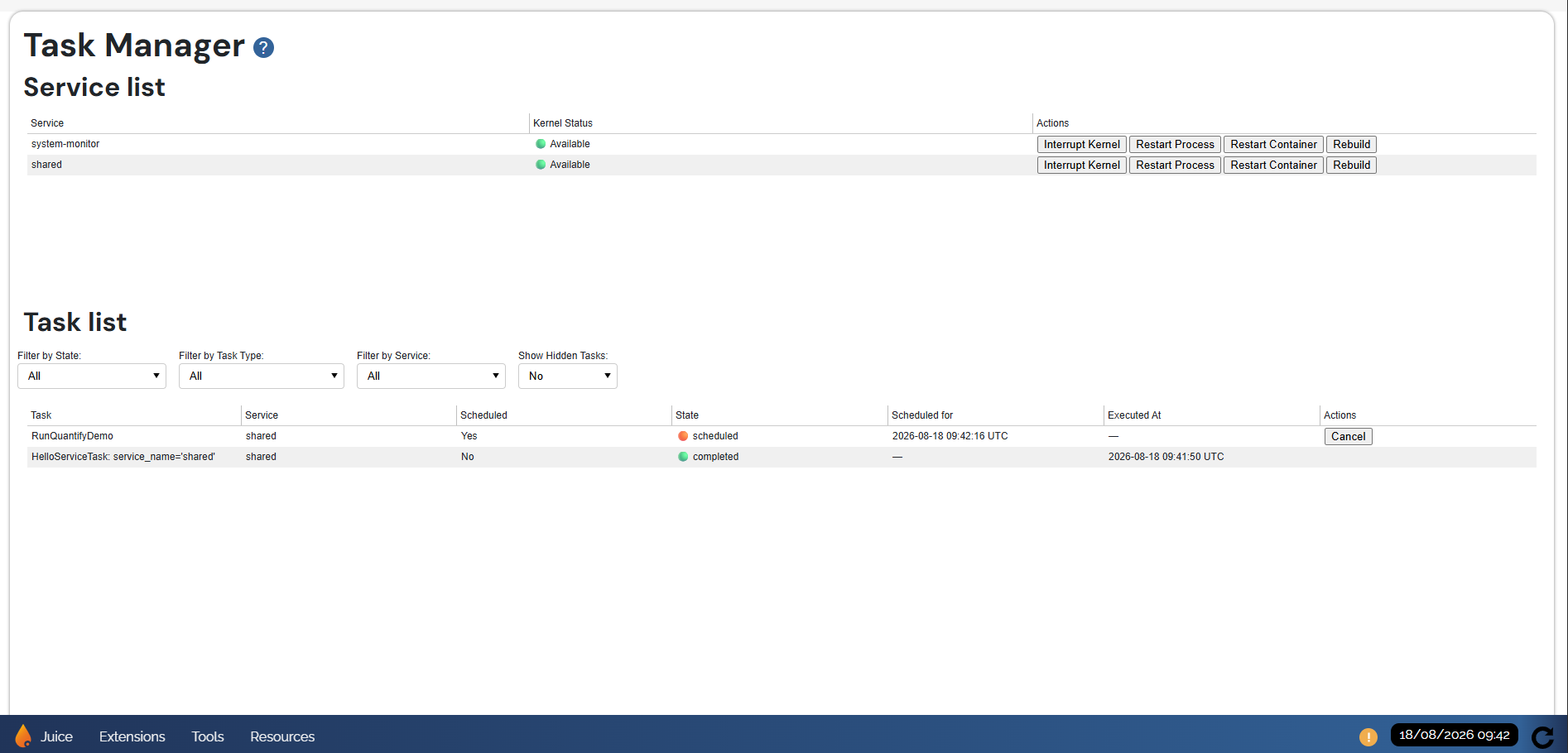
Unlike the immediate execute() call from Executing a task, which returned a result right away, this one is queued until it actually runs. Once scheduled, the task also appears on the Task Manager page of the dashboard while it is queued and running:
Next steps#
This guide has shown you the basics of running tasks, and used them to schedule a real experiment. Tasks can do much more than run code blocks in a kernel, refer to the list below to learn about more of their features:
Define your own task types and register handlers on your own services, so others can execute actions you expose. Refer to the Tasks guide for more information.
Mark a task type as parallel so it fires as soon as it is eligible instead of waiting for the target’s slot. Non-parallel tasks are dispatched one at a time per target; parallel tasks bypass the wait.
A scheduled task moves through more states than the
queued/doneyou saw above (e.g.running,failed,cancelled), and itsTaskHandlecan also cancel the schedule — see the class’s docstring for the full lifecycle.